Photo Export
Back up iCloud Photos from your Mac to an external drive
Free, open-source macOS app for exporting Apple Photos — entire library, Favorites, individual albums, and videos — to folders you control. Optional Include originals toggle keeps unedited copies of edited shots.
A native app built on Apple's PhotoKit. No cloud services, no subscriptions, no account required — your photos, your folders.
Why Use Photo Export for Your iCloud Backup?
Photo Export uses Apple's PhotoKit framework — the same system API that powers the built-in Photos app. It sees exactly what your Photos app sees: every photo, video, and album synced through iCloud Photos. No reverse engineering, no private APIs, no workarounds.
This matters because PhotoKit is the only supported way to read the Photos library on macOS. It means the app works reliably across macOS updates, respects your privacy settings, and can request iCloud originals on demand through Apple's own infrastructure. The app never asks for your Apple Account password, and reads your library read-only — it can't modify or delete anything in Photos.
Features
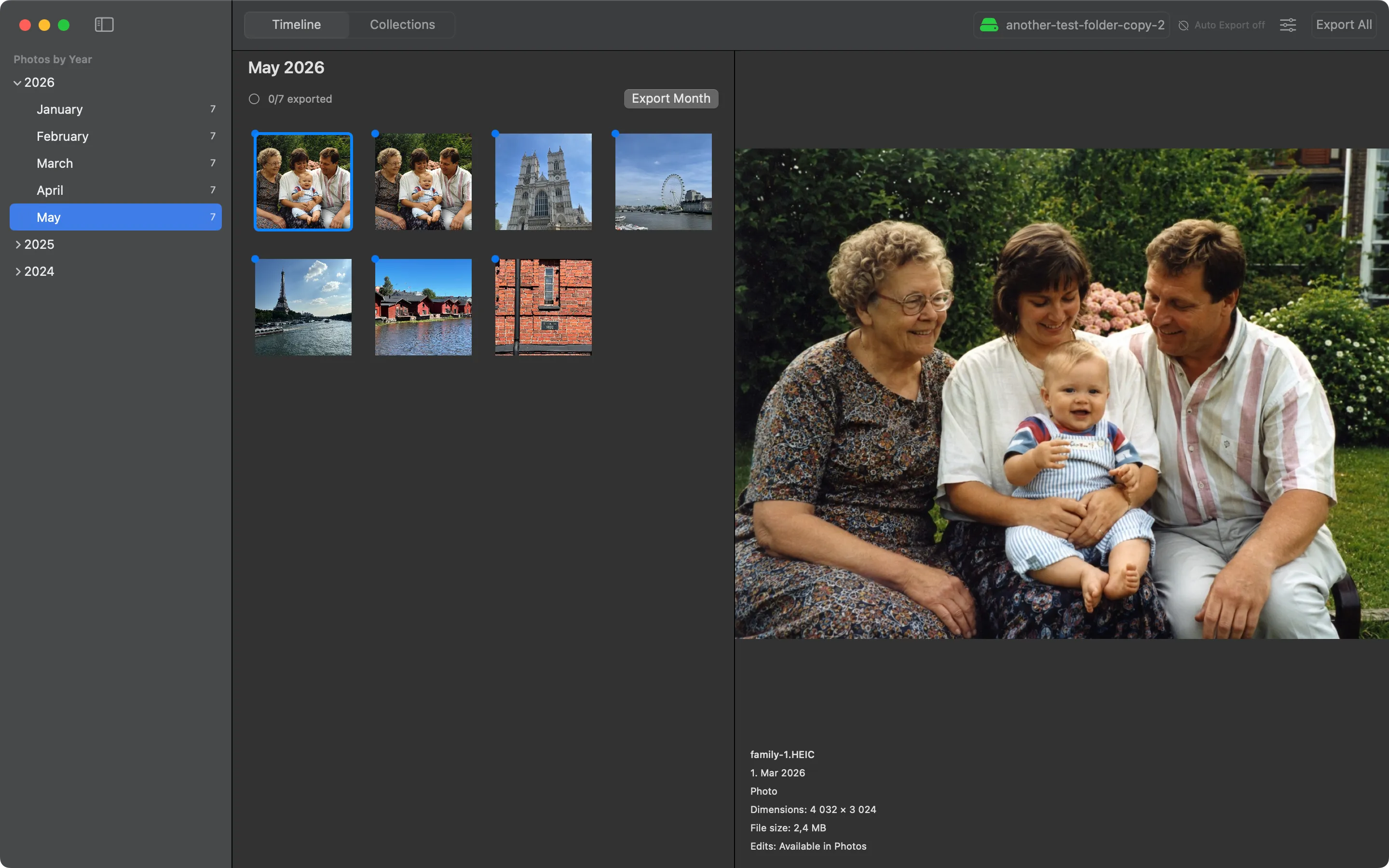
Two Ways to Browse
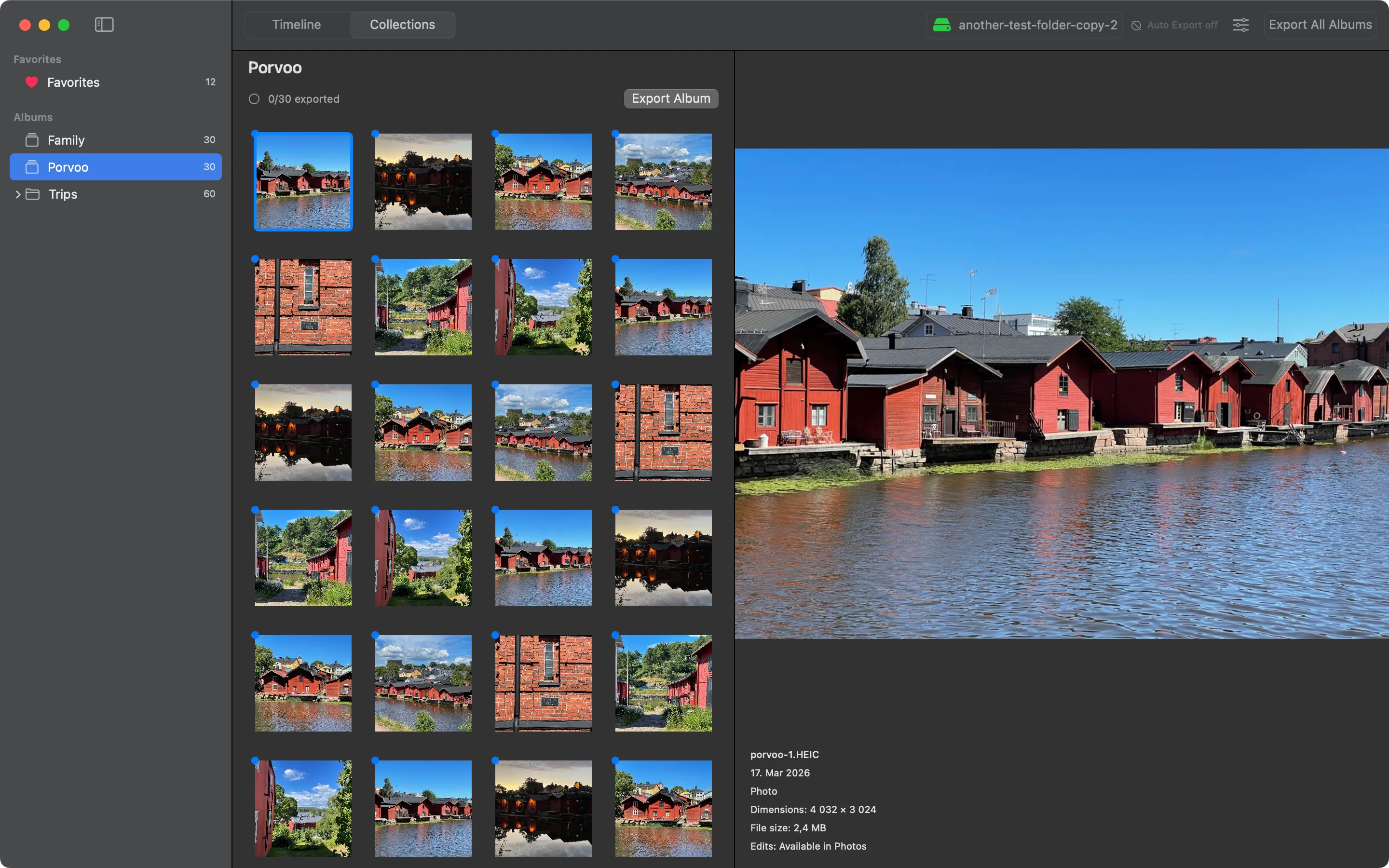
Find any photo fast — by the date you took it, or by the album you saved it to. Photo counts and export status at a glance.
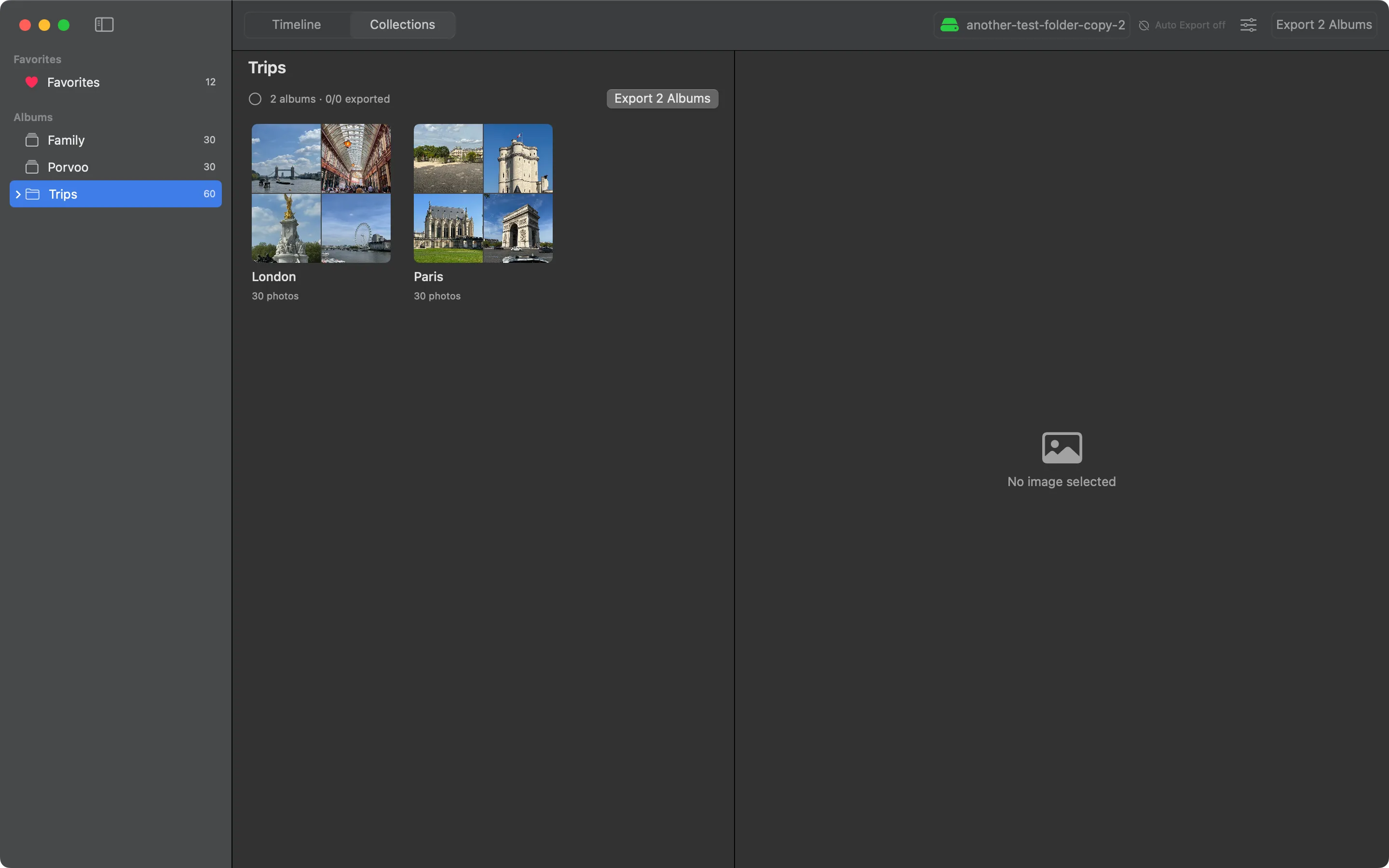
Export by Album
Back up just your Favorites, or one specific album, in one step.
Albums under Photos folders preserve their hierarchy on disk, e.g. Collections/Albums/Trips/Iceland/.
Thumbnail Previews
Fast thumbnail grid with in-memory caching. Click any photo for a full-size preview.
Edits Included
Exports the version Photos shows you — edits and all — at the original
filename. Open Settings → Advanced to also keep _orig companions with the original bytes.
Convert HEIC to JPEG
Optional toggle in Settings → Advanced re-encodes HEIC and HEIF captures as high-quality JPEG on export. Useful for destinations that don't understand HEIC — a NAS, a Windows PC, an older photo viewer. Non-HEIC photos are unaffected.
Live Photos
Optional toggle in Settings → Advanced writes the paired
.MOV next to each Live Photo's still (e.g.
IMG_0001.HEIC + IMG_0001.MOV). Off by
default — Live Photo paired videos roughly double disk usage on
Live-Photo-heavy libraries.
Videos in a Subfolder
Optional toggle in Settings → Advanced routes standalone
videos into a videos/ subfolder (e.g.
2026/03/videos/IMG_0002.MOV) so a backup doesn't mix
.JPG and .MOV files in the same folder. Live Photo
pairs stay together.
Smart Export Tracking
Remembers every exported photo. Resume-safe — never re-exports what's already been copied.
Pause / Resume / Cancel
Full control over the export queue. Pause a long export and pick it up later.
Auto Export
Optional set-it-and-forget-it backup: new photos land in your destination as they appear in Apple Photos. Picks a scope (Timeline / Favorites / Albums) and runs on its own.
Remembers Your Folder
Your chosen destination folder is remembered across app launches — no need to re-select it.
Graceful Error Handling
Handles denied access, unavailable drives, and individual photo failures without crashing the batch.
How to Export Your iCloud Photos in 3 Steps
Prerequisite: Make sure iCloud Photos is enabled on your Mac (System Settings → Apple Account → iCloud → Photos). Photo Export reads your local Photos library, so your iCloud photos need to be syncing to this Mac.
Grant access & pick a folder
Authorize Photos library access and choose a destination folder on any local or external drive.
Browse your library
Switch the sidebar between two views: a year-and-month timeline, or your Favorites and albums straight from Photos. Preview thumbnails and inspect individual photos before exporting.
Export
Hit export and the app copies original files into an organized
folder tree — Year/Month/ for the timeline,
Collections/Favorites/ or Collections/Albums/<Album>/ for collections. Track progress in real time.
Screenshots
YYYY/MM/ structure.
Shipped from real-world feedback
Photo Export improves on what users actually report. Recent releases added album and Favorites export, backup-folder import to rebuild export state from an existing folder, the Include originals toggle for keeping unedited copies of edited photos, and Convert HEIC to JPEG for destinations that don't understand HEIC. See the release notes for the full history.
If something doesn't work the way you expect, open an issue — bug reports and feature suggestions are read and acted on.
Known limitations
Backup tools should be honest about what they don't do yet. Here's what to expect today:
- Requires macOS 15.0 or later.
- Smart albums other than Favorites aren't surfaced. Albums, Favorites, and iCloud Shared Albums are.
- iCloud Shared Albums export at reduced quality. Apple only serves shared photos as downscaled JPEGs — there's no API to fetch the full-resolution originals. The Include originals and Convert HEIC to JPEG toggles are no-ops for shared albums, and shared-album Live Photos can't be exported with their paired video.
- Exports run sequentially. Edited videos additionally render through the Photos framework, which can take noticeably longer than copying — especially for 4K or iCloud-only originals.
- Toggle changes apply to new exports only. Turning on Convert HEIC to JPEG or Separate videos into a subfolder later doesn't relocate or re-encode files already on disk; re-run an Export action (or wait for Auto Export) to bring them in line.
Download & install
Free from GitHub. Paid on the Mac App Store if you want automatic updates and to support development. Same app, same features — both signed and notarized by Apple.
GitHub Releases (free)
-
Download the latest
.dmgfrom GitHub Releases - Open the DMG and drag Photo Export to your Applications folder
- Launch the app and grant Photos library access when prompted
Mac App Store (paid)
Install directly from the Mac App Store for automatic updates and trusted distribution. Your purchase supports continued development of an open-source project.
Ideas for the future
- Concurrent export pipeline for faster throughput
- iCloud originals handling (download or skip remote-only photos)
- Retry failed exports without restarting the batch
- Media filtering and search within the library browser
- Flexible naming schemes beyond year/month
Missing a feature? Open an issue on GitHub and let us know what you need.
Frequently Asked Questions
- Does this work with iCloud Photo Library?
- Yes. Photo Export reads your Apple Photos library, which includes all photos synced via iCloud. It can also download iCloud originals that are stored remotely on demand during export.
- Can I export photos to an external hard drive?
- Absolutely. You can choose any local or external drive as your export destination. The app remembers your choice across launches.
- Will it download iCloud originals that are stored remotely?
- Yes. During export, the app automatically downloads originals from iCloud when they aren't stored locally on your Mac. No manual downloading required.
- Is it free?
- Photo Export is free and open source on GitHub Releases. It's also available as a paid app on the Mac App Store — the purchase supports ongoing development. Both versions are identical in functionality.
- Does it export videos too?
-
Yes. The app exports photos and videos. Live Photos export as
still-only by default; turn on
Settings → Advanced → Export Live Photos as paired image + video
to also write the paired video next to the still (e.g.
IMG_0001.HEIC+IMG_0001.MOV) using whatever extension casing PhotoKit reports for that resource. Shared-album Live Photos remain still-only because Apple does not expose their paired video. Standalone videos can optionally land in avideos/subfolder via Settings → Advanced → Separate videos into a subfolder, so a backup doesn't mix.JPGand.MOVfiles in the same folder. - How do I export a single album from Apple Photos?
-
Yes — you can export your Favorites or any individual
album to its own folder on your drive. Photo Export lists everything you've
created in Photos under a Collections
tab in the sidebar; pick one and click Export.
Albums land at
Collections/Albums/<Album>/(folder hierarchy preserved); Favorites land atCollections/Favorites/. Smart albums other than Favorites aren't included. iCloud Shared Albums are surfaced in their own sidebar section and export toCollections/Shared Albums/, but at reduced quality — Apple only serves shared photos as downscaled JPEGs. Timeline (year/month) export still works exactly as before. - What about photos I have edited in Photos?
-
By default, Photo Export saves the version Photos shows you — edits
and all — at the original filename. Open Settings → Advanced (Cmd+,) and turn on Include originals to also keep
an original-bytes copy as a
_origcompanion (e.g.IMG_0001_orig.HEICalongsideIMG_0001.JPG). - Can I export HEIC photos as JPEG?
- Yes. Open Settings → Advanced (Cmd+,) and turn on Convert HEIC to JPEG. Photo Export then re-encodes HEIC and HEIF captures as high-quality JPEG on export — useful if your destination (a NAS, a Windows PC, an older photo viewer) doesn't understand HEIC. Non-HEIC photos are unaffected. The toggle applies to new exports only; re-run an Export action to convert HEICs already on disk.
- What happens if the export is interrupted?
- The app tracks every exported photo. If the export is interrupted, you can resume and it will skip most already-exported files. In rare cases (e.g. a crash mid-write), a file may be copied again.
Get started
Download Photo Export, grant Photos access, and start backing up your library today. Free on GitHub, or support the project on the Mac App Store.
Found a bug or have feedback? We'd love to hear from you.